What a FIX it! teacher actually sees
This page walks through a FIX it! teacher account the way it looks in use. The account belongs to a fictional teacher, Ms. Rivera, with two sixth-grade ELAR classes, a year plan, four assignments, and student work already turned in. Every image below is a screenshot of the real product at desktop width.
Nothing on this page is interactive, and no real student or teacher data appears. The walkthrough runs in the order a teacher meets each screen: setup, planning, assigning, what students see, and what comes back.
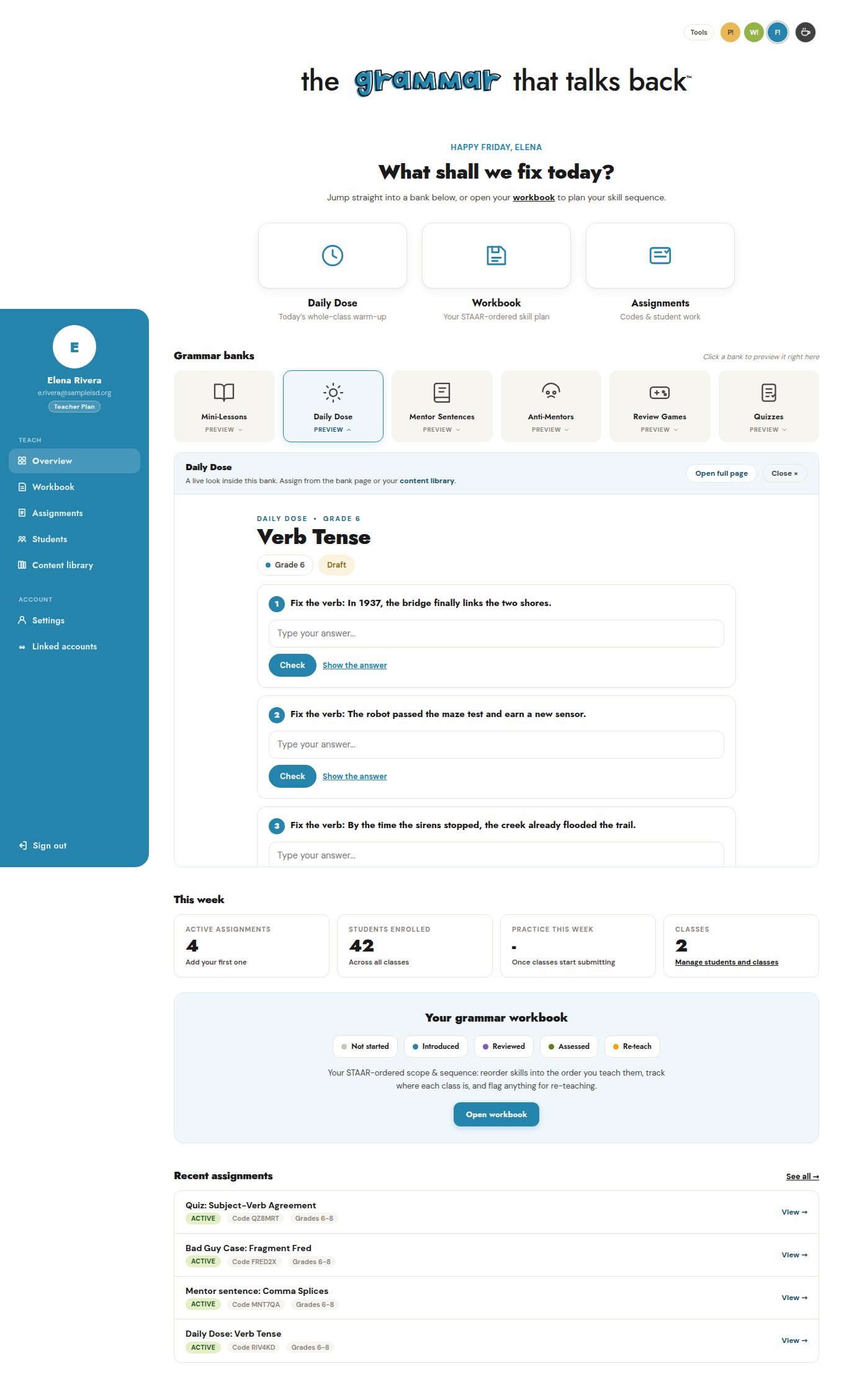
The teacher's home screen
Ms. Rivera signs in to this overview: her two classes, four active assignments, and every grammar bank one click away. The Daily Dose tile is open here, previewing a real sixth-grade warm-up in place.
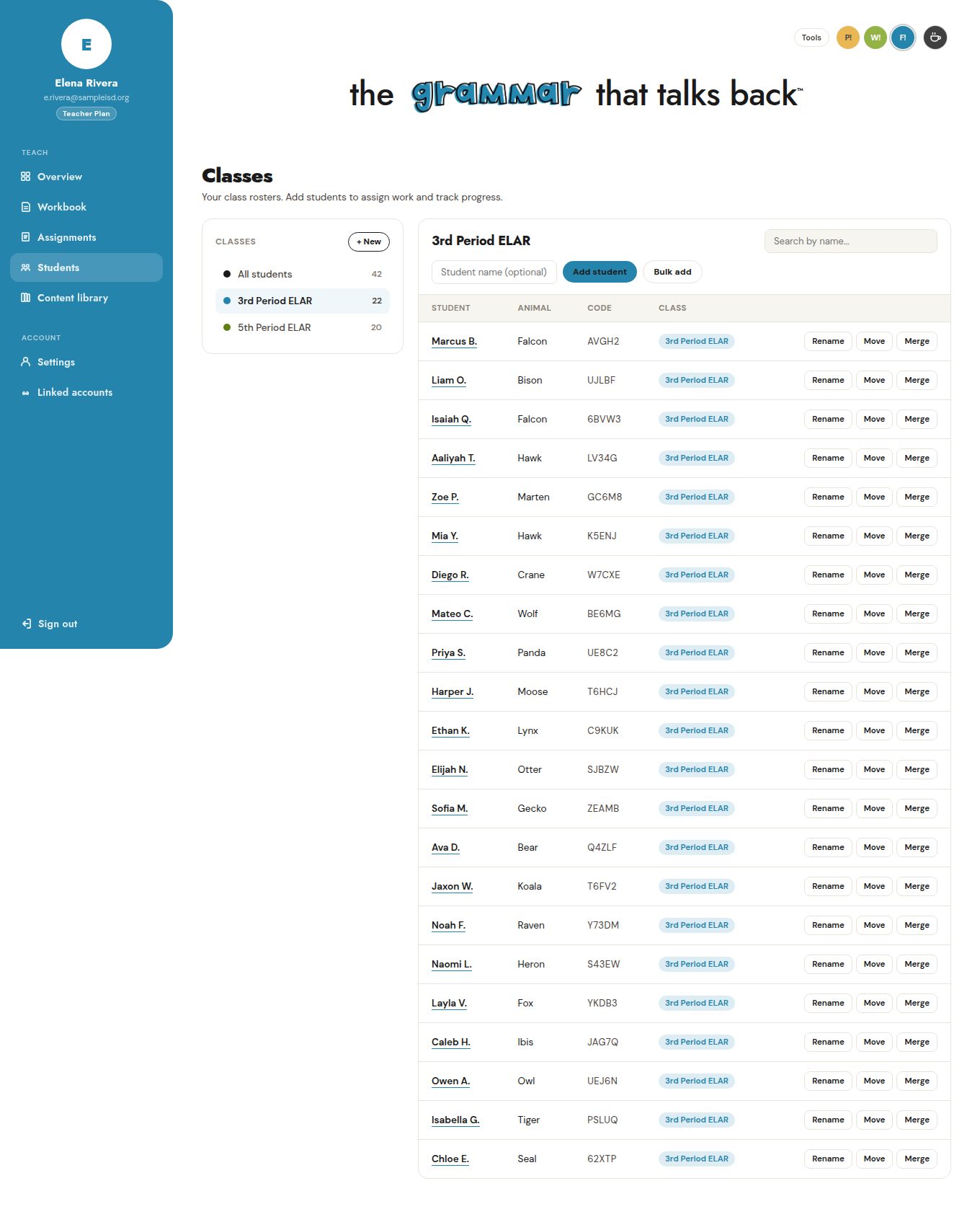
One class roster
3rd Period ELAR, 22 students. Each student has a sign-in code and an animal name; the teacher can rename, move, or merge a student from this list. Rosters can be typed in one at a time or pasted in bulk.
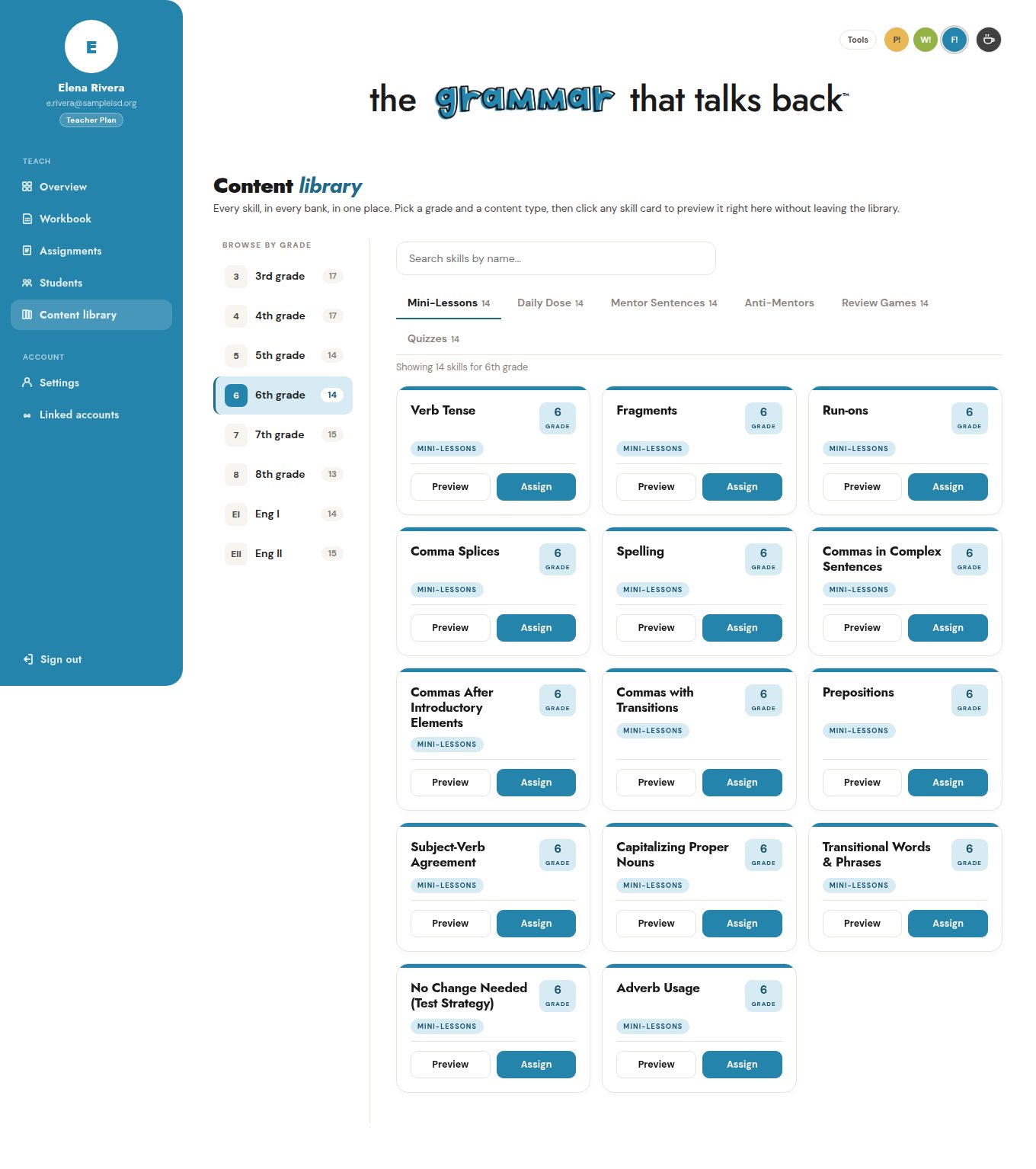
The content library
Every skill for every grade, 3rd through English II, listed in the order those skills appear on STAAR and EOC editing questions. Each card can be previewed in place or assigned as a mini-lesson, Daily Dose, mentor sentence, review game, or quiz.
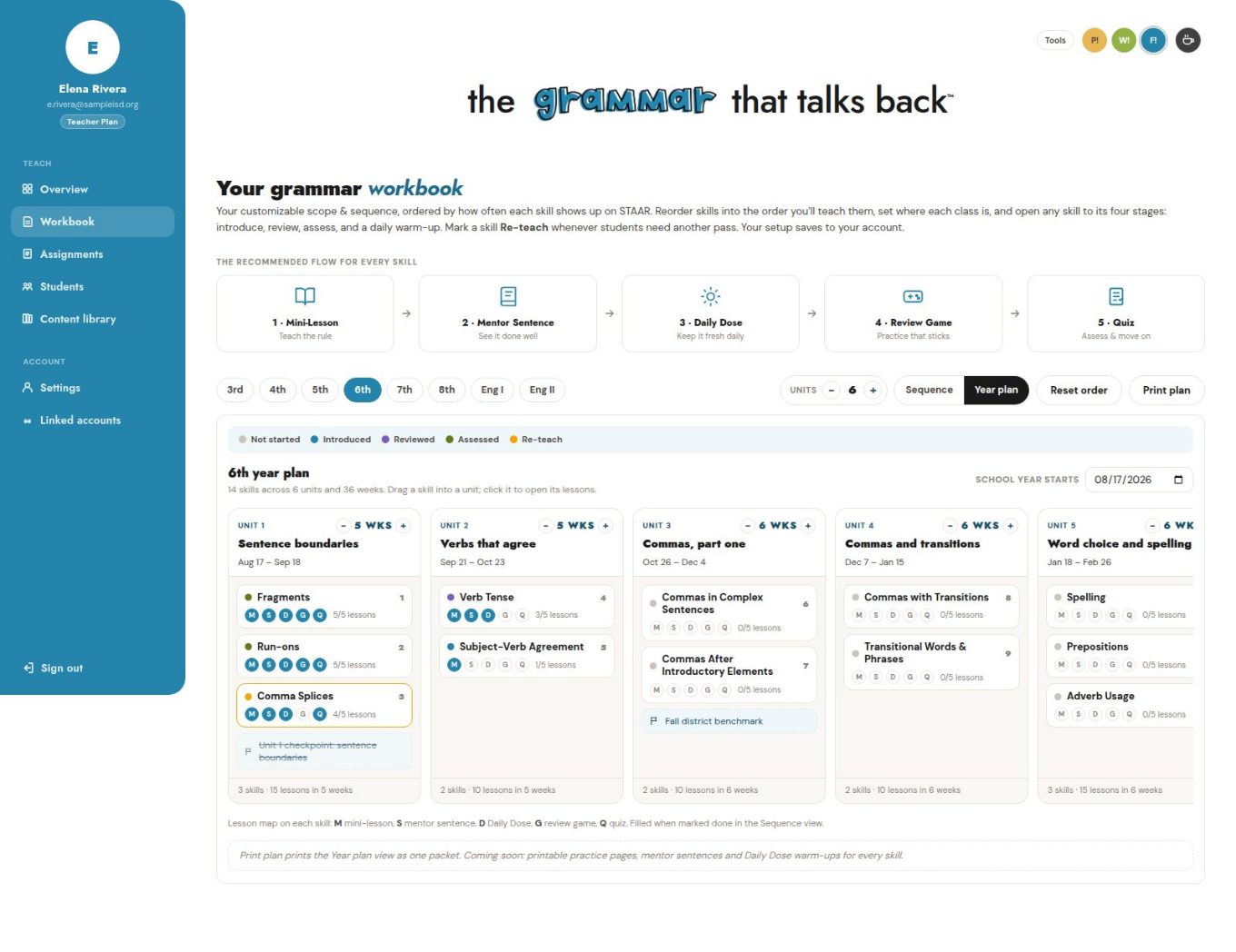
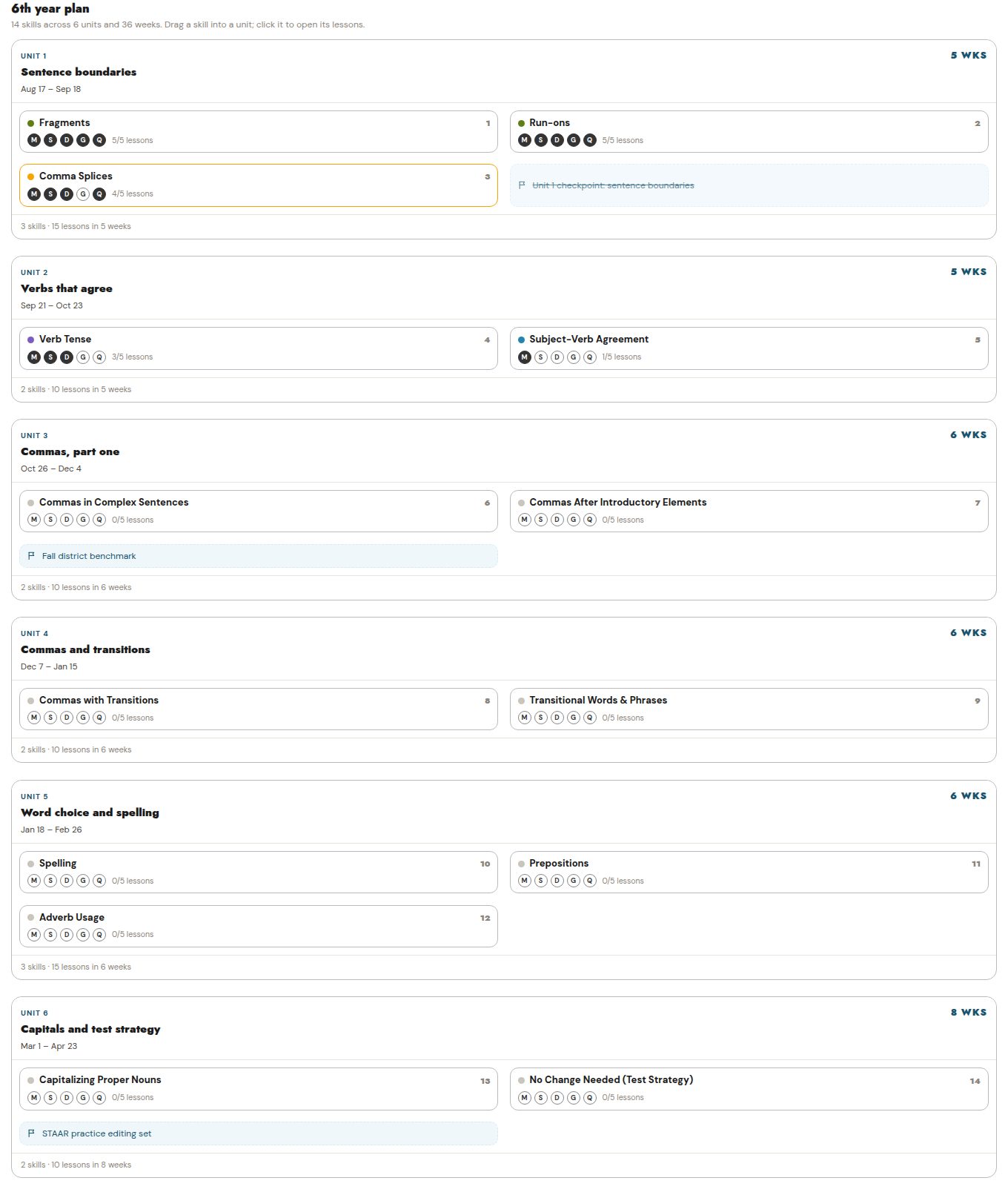
The year plan
The same skills laid out across six dated units in the workbook's Year plan view. Ms. Rivera has worked through most of Units 1 and 2, flagged Comma Splices for re-teaching, and added a district benchmark as a checkpoint. Skills drag between units; the sixth unit sits just to the right of the board.
The plan as a printed packet
Print plan turns the year view into a single handout, unit by unit, with the lesson map kept on every skill. This is the version a teacher brings to a PLC or hands to a principal.
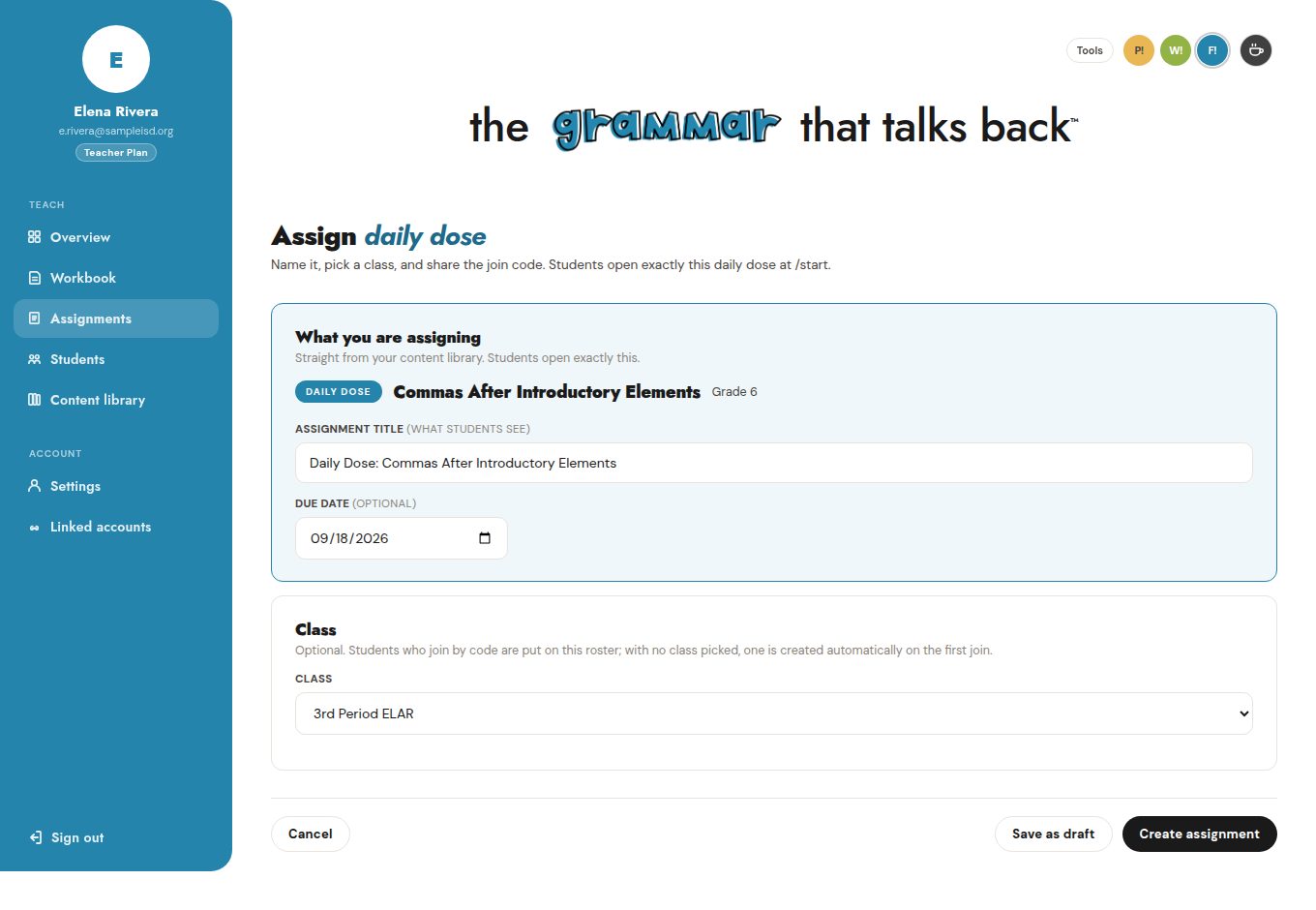
Assigning from the library
Clicking Assign on any skill opens this form: the title students will see, an optional due date, and a class. Create assignment produces a six-character join code that students use to get in.
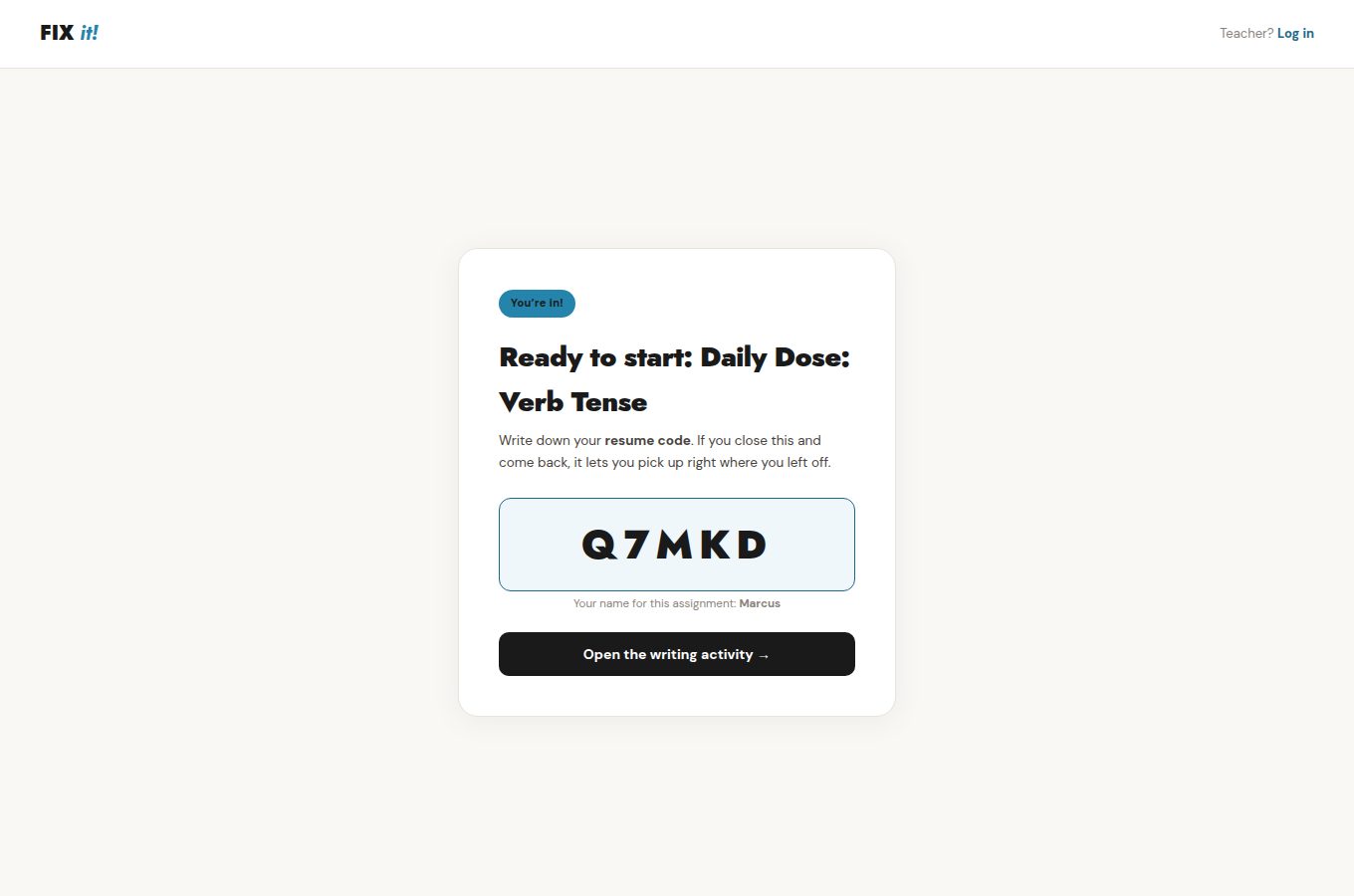
What a student sees when joining
Students open the join page, enter the code and their name, and receive a resume code that lets them pick up where they left off. There are no student accounts, email addresses, or passwords.
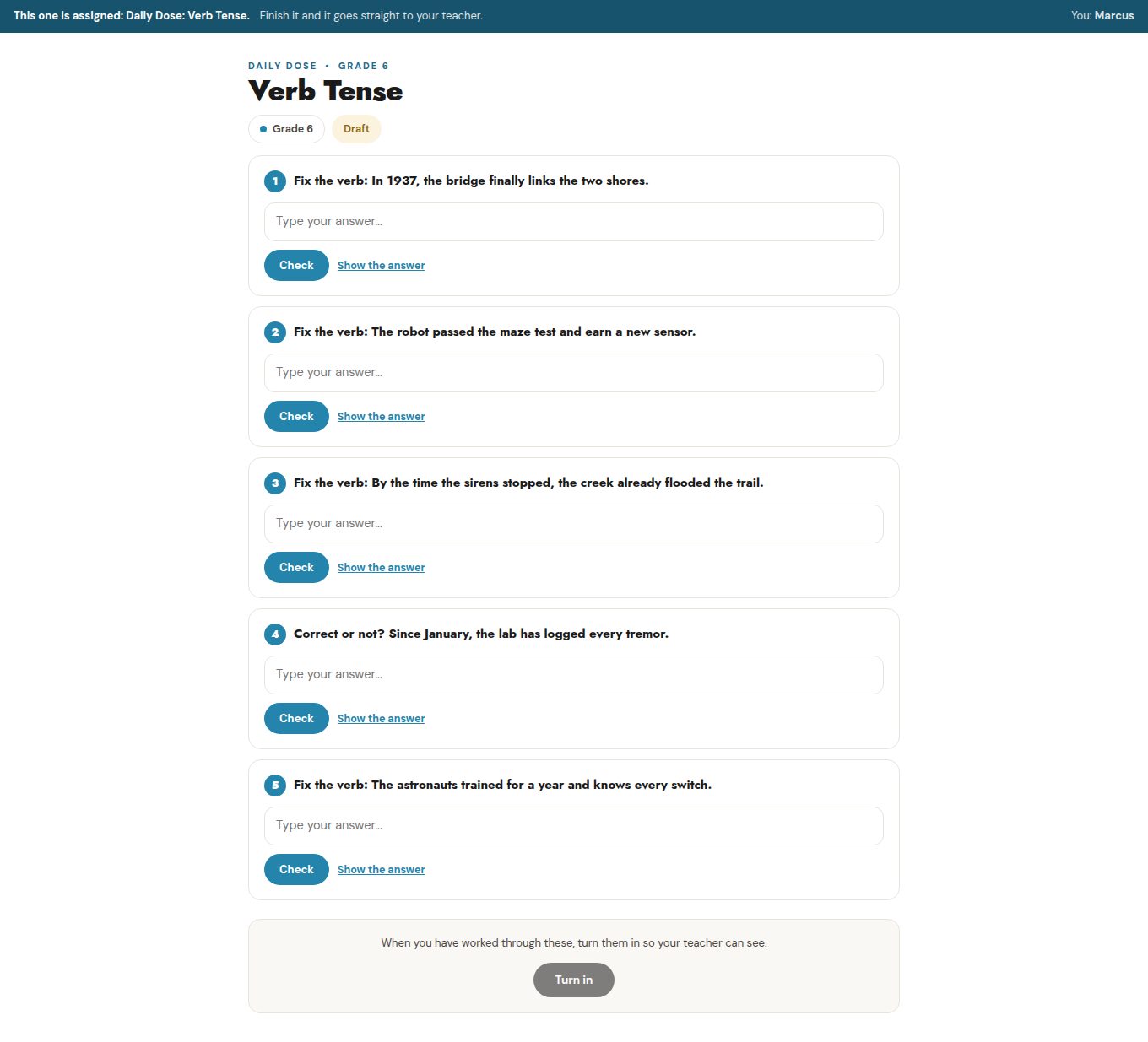
A Daily Dose warm-up
Five short editing items on one skill, meant for the first minutes of class. The banner tells the student this one is assigned; Turn in sends the score to the teacher.
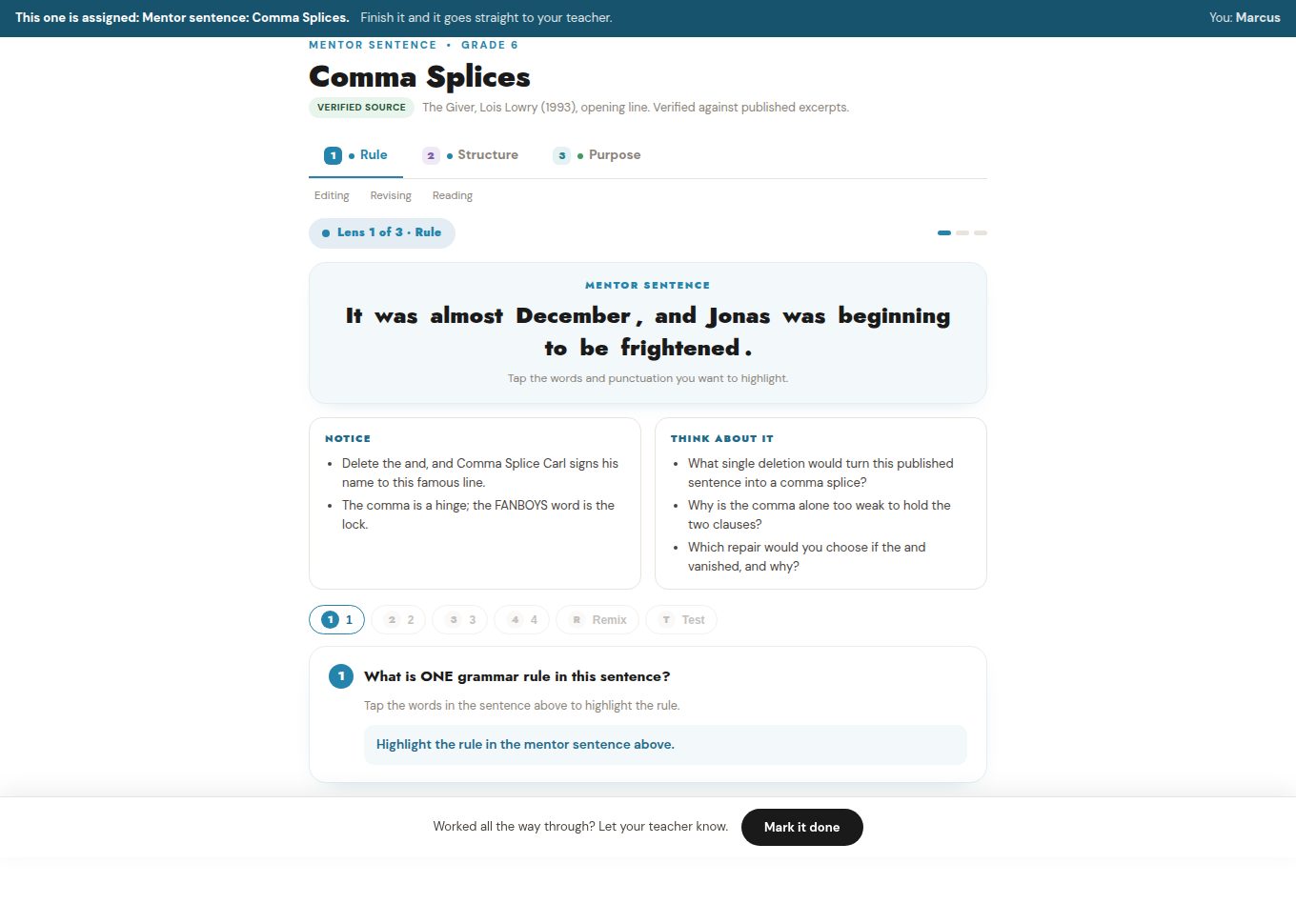
A mentor sentence
A published sentence, source cited, studied through three lenses: rule, structure, and purpose. Students tap the words that carry the rule, then answer a practice question written for that sentence.
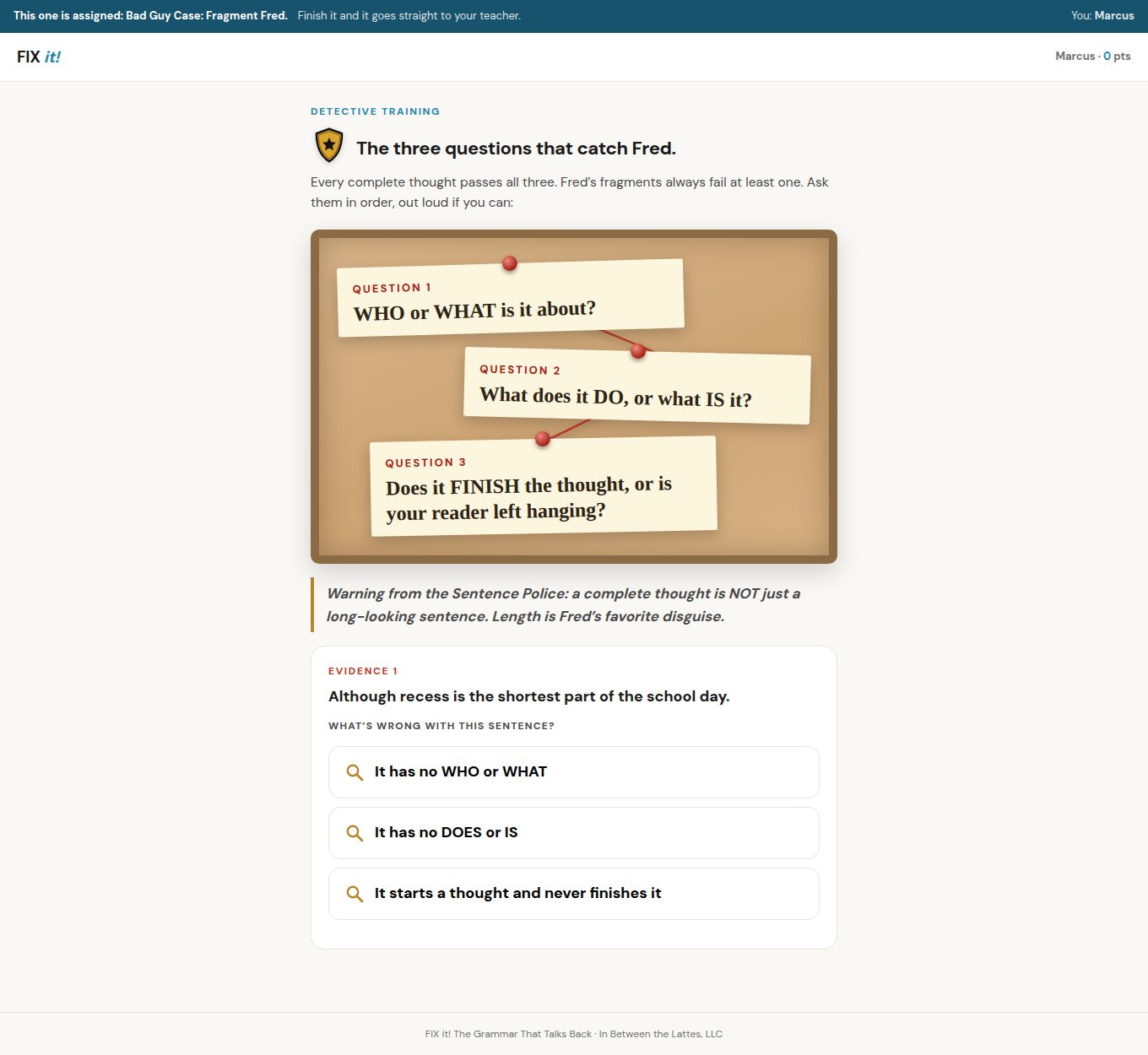
A Bad Guy case: Fragment Fred
Sentence fragments taught as a detective case. The student learns the three questions that catch a fragment, then applies them to evidence one screen at a time, earning the way forward.
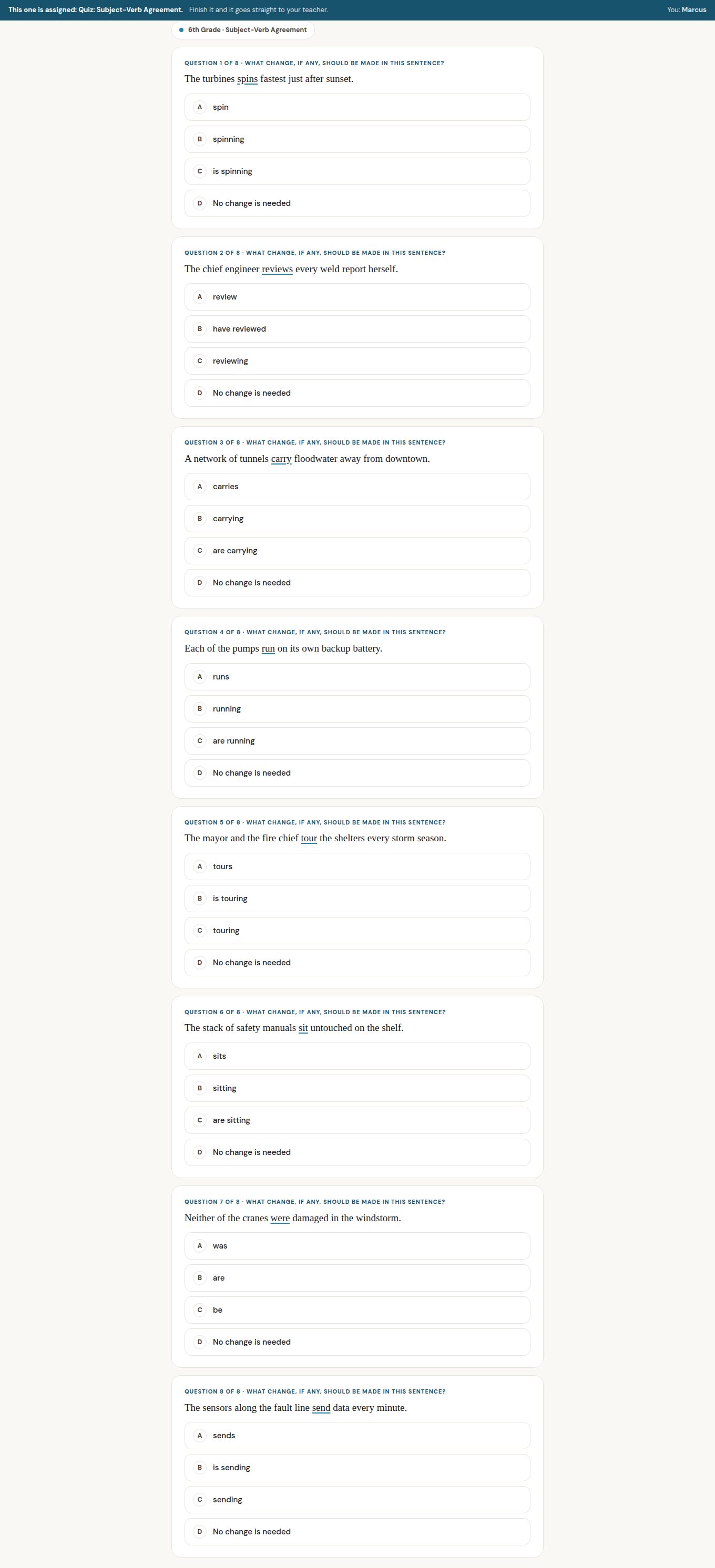
A quiz
Eight items on Subject-Verb Agreement in the STAAR editing format, including the No change is needed option. The score is recorded for the teacher when the student finishes.
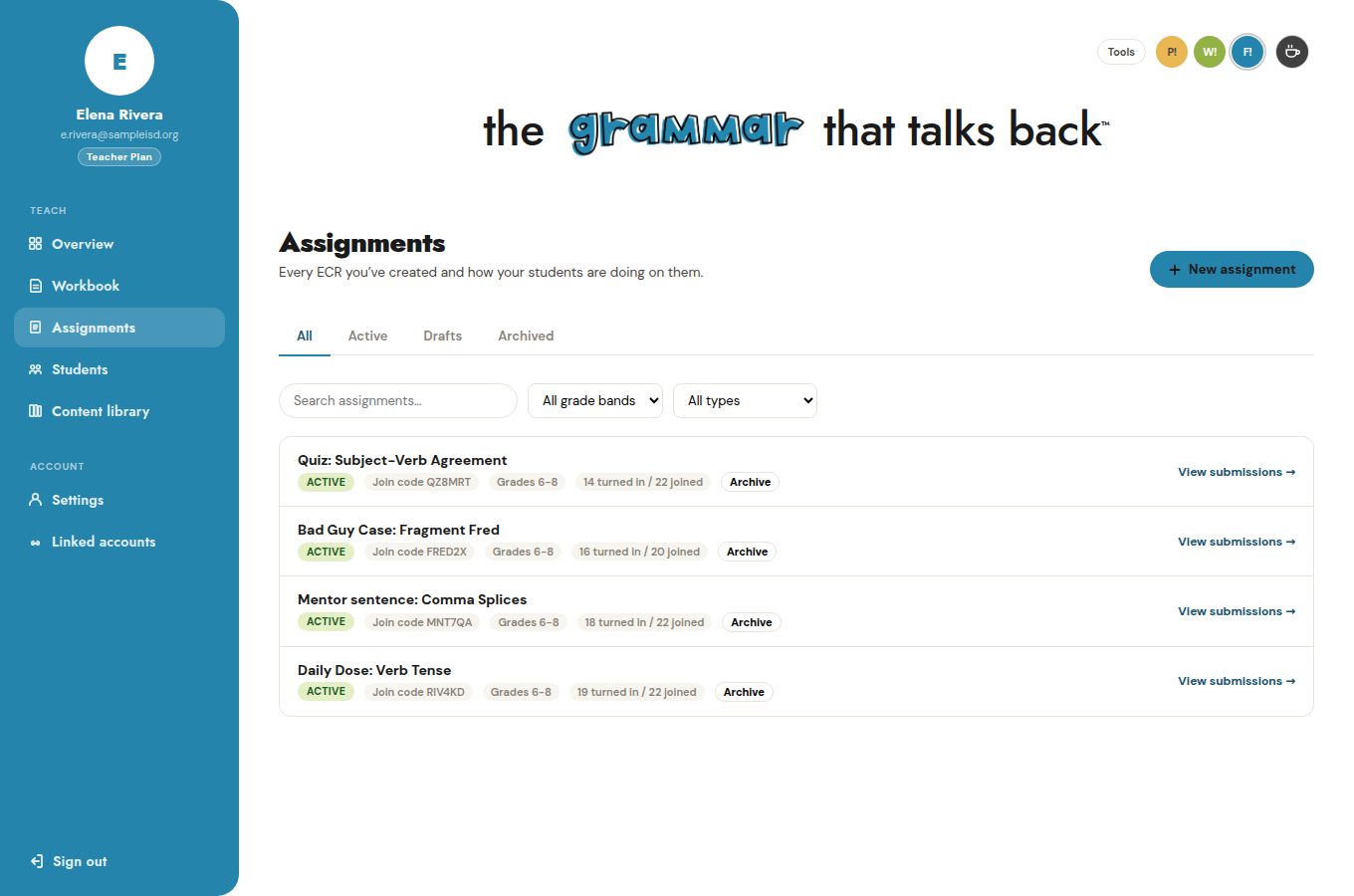
Every assignment at a glance
Each assignment with its join code, status, and how many students have joined and turned it in. Filters narrow the list by status, grade band, and content type.
One student's turn-in
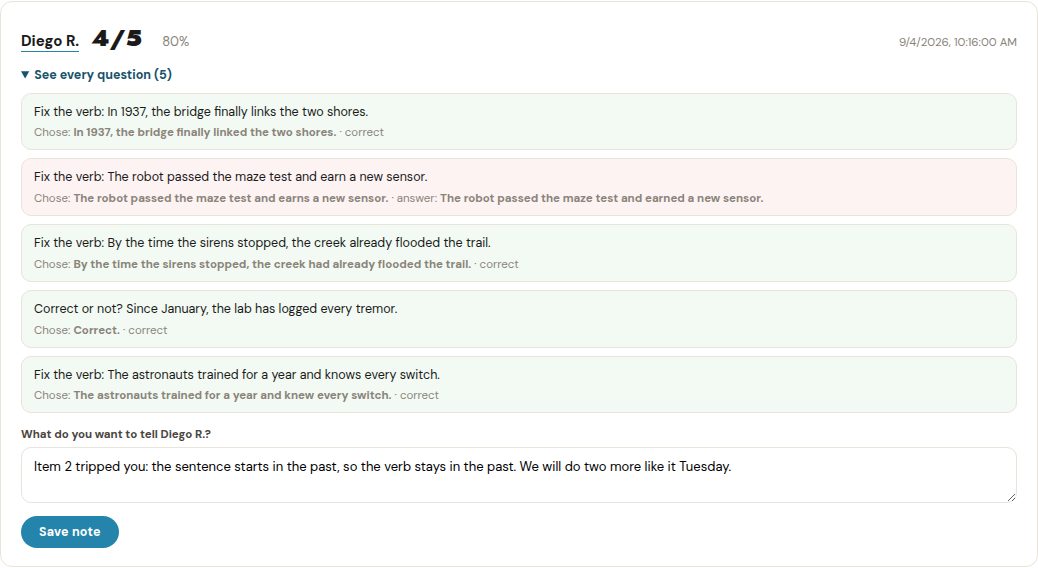
Each turn-in opens to every item: what the student wrote, whether it was right, and the correct answer. The teacher leaves a short note here, and the student reads it the next time they enter their resume code.
The class report
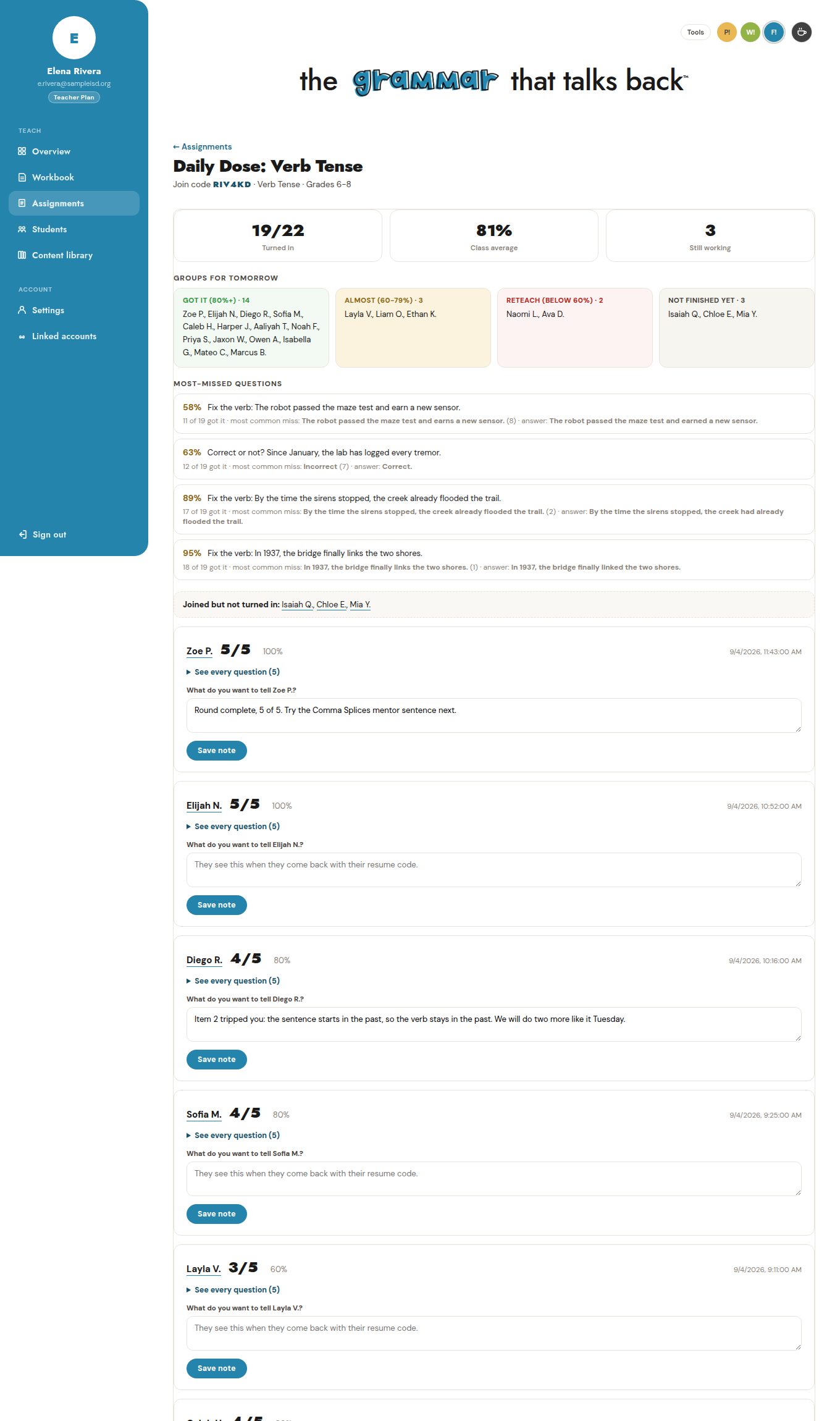
Totals, a class average, and groups for tomorrow sorted by score, followed by the most-missed items with the most common wrong answer. Ms. Rivera can see in a few seconds that item 2 needs another pass and which two students need it most.
Want to see it with your own roster?
Send a quote request and we will follow up with next steps for your campus or district.
FIX it!, the grammar that talks back. In Between the Lattes, LLC. The sample account and every student name on this page are fictional. Privacy and terms